 |
|
|
|
|
 |
 |
 |
|||
|
|
SpamWeasel Support Issues Outlook Express configuration 1 Click on Tools | Accounts. 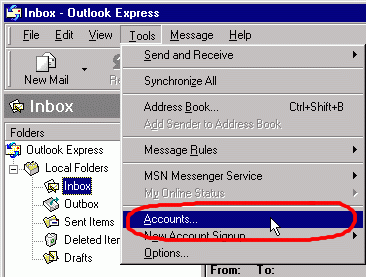 2 Double-click on the account you wish to use with SpamWeasel. 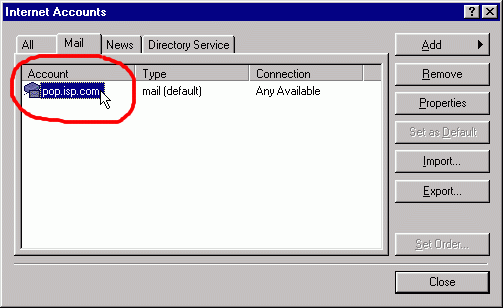 3 On the screen that appears, select the "Servers" tab. This will show your current settings. 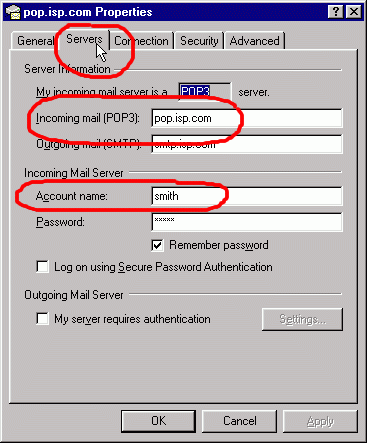 4 At the end of the "Account name" field, type an "@" sign, followed by the contents of the "Incoming mail (POP3)" field. Next, change the "Incoming mail (POP3)" field to "127.0.0.1". Click OK to apply the settings. 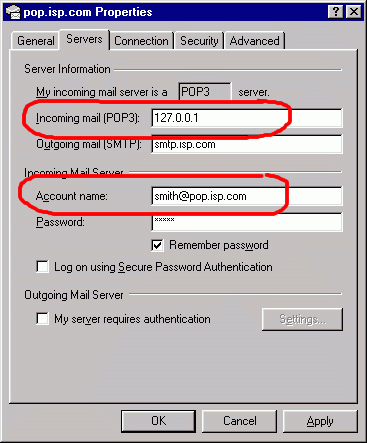 Timeouts You may wish to change the timeout setting in your e-mail client. More information on why this may be required can be found here. To change the timeout settings, select the "Advanced" tab. You can increase the timeout setting here. 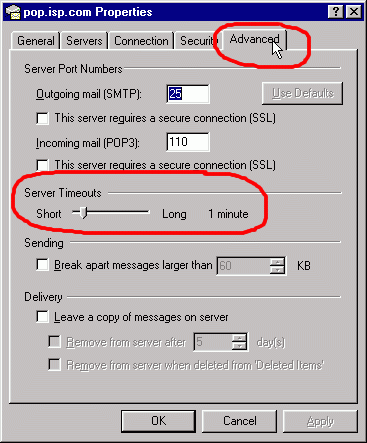  Return To FAQ Return To FAQ |
 |
|
|


