 |
|
|
|
|
 |
 |
 |
|||
|
|
SpamWeasel Support Issues Eudora configuration 1 Click on Tools | Options. 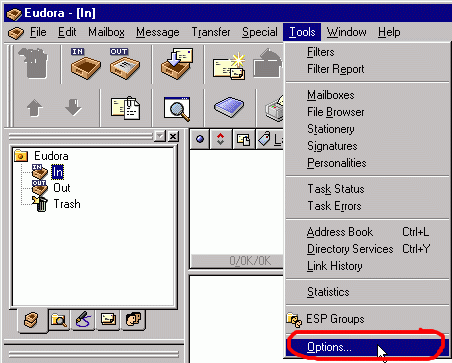 2 The Options screen will appear, showing your current settings. 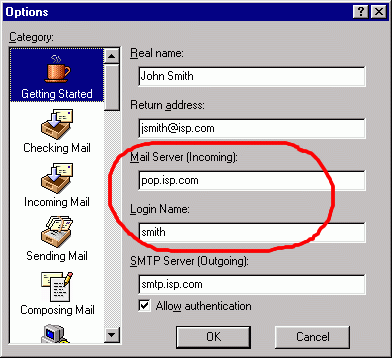 3 At the end of the "Login name" field, type an "@" sign, followed by the contents of the "Mail Server (Incoming)" field. Next, change the "Mail Server (Incoming)" field to "127.0.0.1". 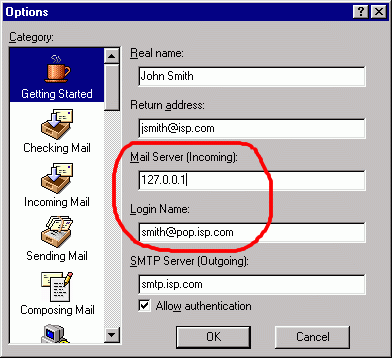 4 Select the "Checking mail" option, in the left-hand pane. Then click on the drop-down menu with the title "Secure sockets when receiving", and select "Never". Click OK to apply the settings. 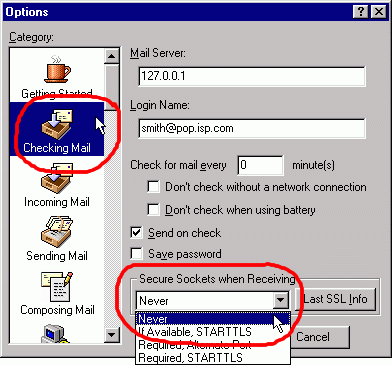 Timeouts You may wish to change the timeout setting in your e-mail client. More information on why this may be required can be found here. To change the timeout settings, scroll down the list on the left-hand side, and select "Network". You can increase the timeout setting here. 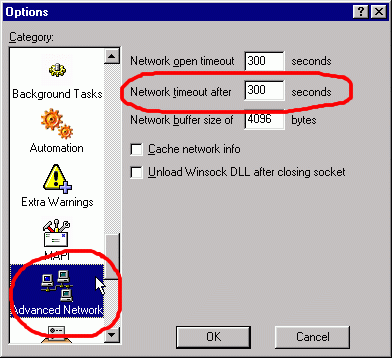  Return To FAQ Return To FAQ |
 |
|
|


